JetBrains plugin
The portcheck plugin brings the same fixes to IntelliJ IDEA, WebStorm, PyCharm, GoLand, PhpStorm, RubyMine, Rider, CLion and Android Studio (2025.2 or later). portcheck is built in.
Install
Status
The plugin is on its way to JetBrains Marketplace. Until it's listed, install it from a release.
Download portcheck-jetbrains-<version>.zip from the
latest release, then in
the IDE open Settings → Plugins → ⚙ → Install Plugin from Disk… and choose the zip.
It carries portcheck for macOS, Linux and Windows (x64 and arm64) and uses the right
one. The zip has build provenance:
gh attestation verify <file> --repo roystondwork-dev/portcheck.
"Port in use" in Run/Debug: stop it and rerun
When a run configuration fails because its port is taken, the plugin names the process that holds it and offers the fix:
▶ Watch the 20-second demo on YouTube
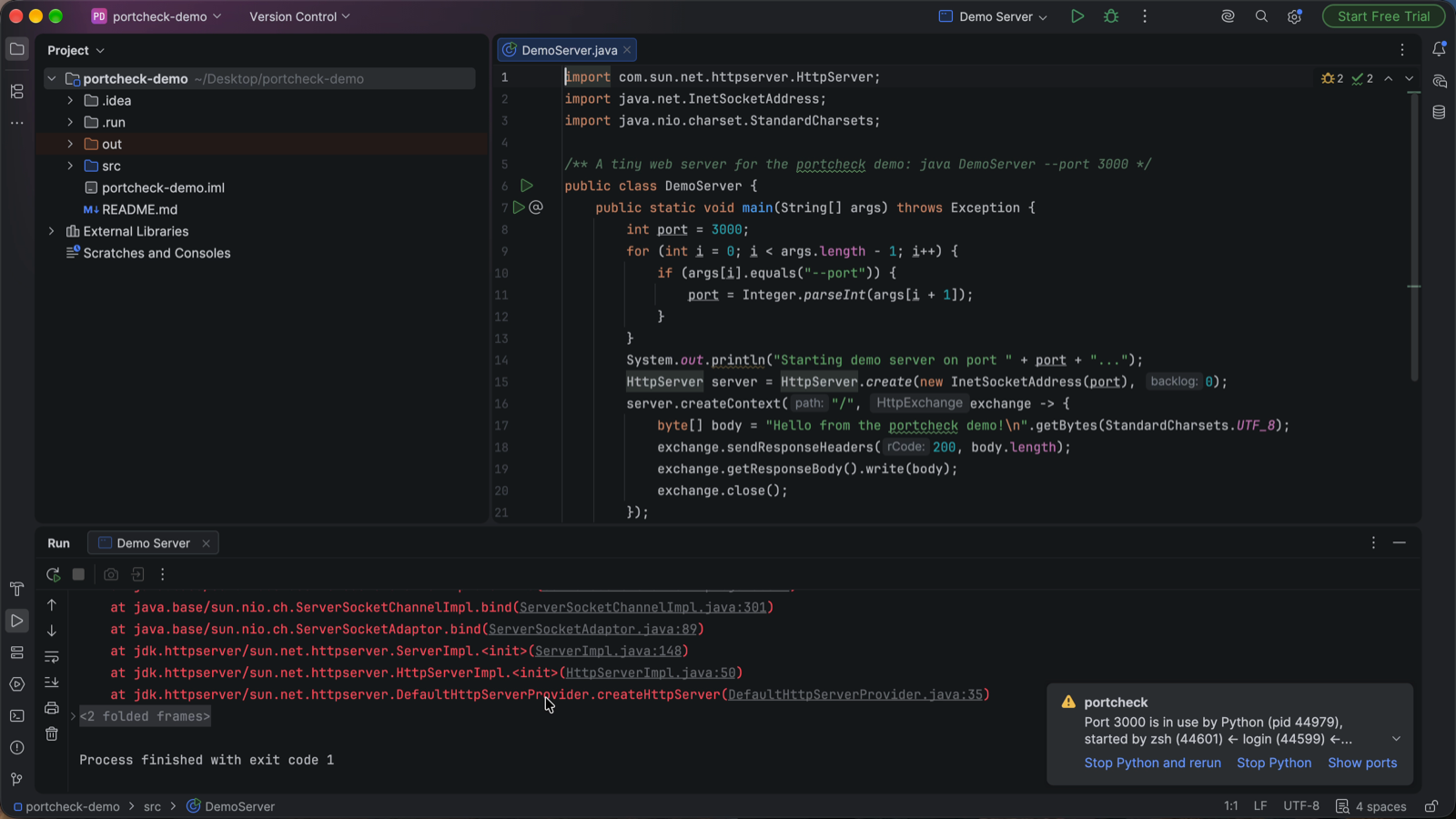
Web server failed to start. Port 8080 was already in use.

 ⚠ portcheck
   Port 8080 is in use by java (pid 41852), started by idea (1203).
   Stop java and rerun · Stop java · Show ports
Stop … and rerun stops that process (after portcheck's safety checks: never system processes or the IDE itself) and runs the same configuration again. It recognises the errors of Node.js, Spring Boot, Tomcat, Go, Python (Django, Flask, uvicorn), Ruby, PHP, .NET, Deno, Rust, Bun, Vite, Next.js, Angular, Create React App, Docker, nginx, Redis and PostgreSQL. A port published by Docker, Podman or WSL gets Copy stop command instead, since stopping the container runtime would affect every container.
Turn it off in Settings → Tools → portcheck.
The Ports tool window
View → Tool Windows → Ports lists every listening port with its process, PID and user.
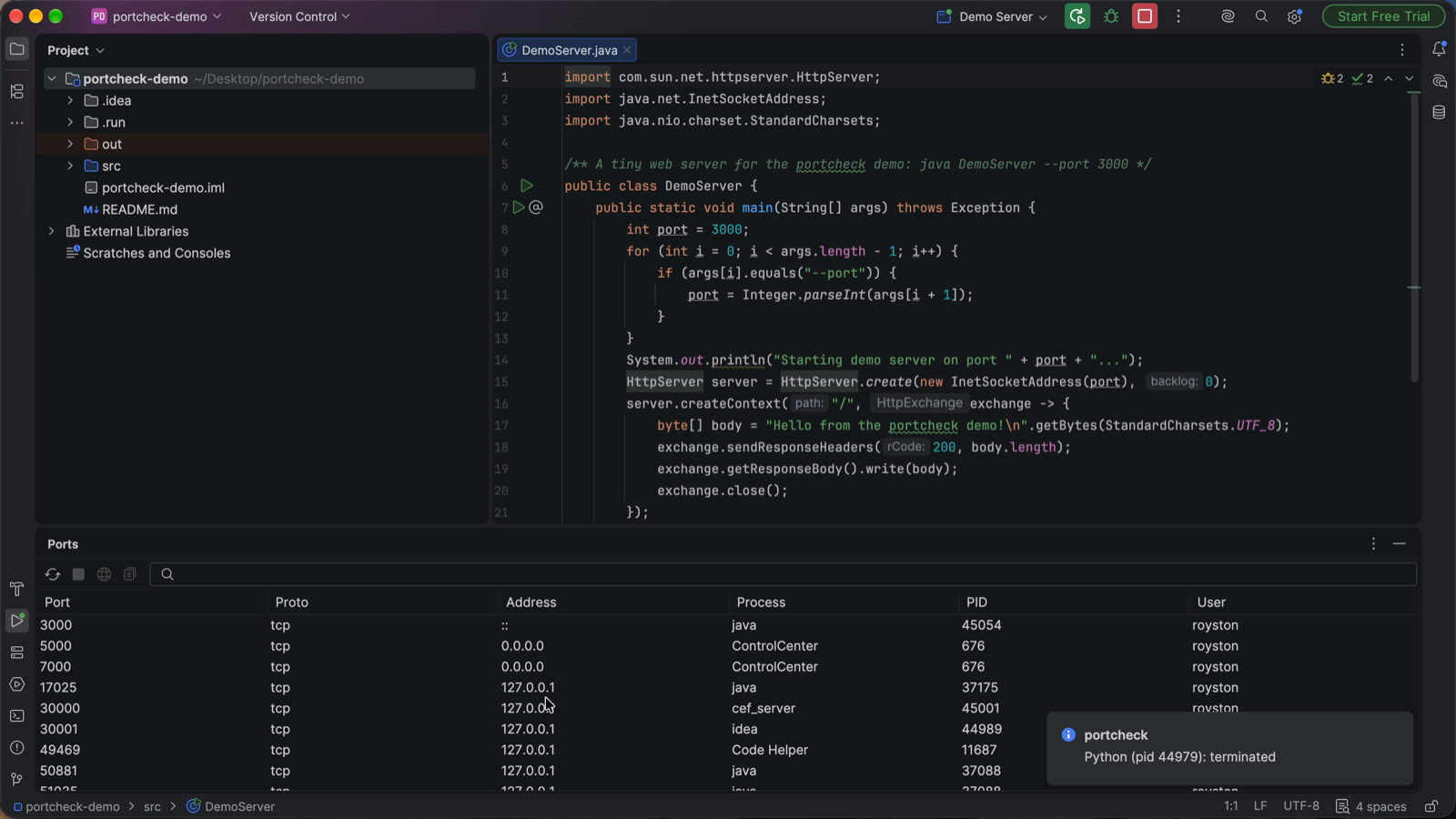 Filter by port, process or user; select a row to Stop it (after confirming),
Open in Browser (or double-click) or Copy PID; Refresh reloads.
Filter by port, process or user; select a row to Stop it (after confirming),
Open in Browser (or double-click) or Copy PID; Refresh reloads.
Actions
Under Tools → portcheck, and in Find Action (⇧⌘A / Ctrl+Shift+A):
- Check a Port…: free, or which process holds it.
- Find a Free Port…: the first free port in a range, copied to the clipboard.
- Stop What's Using a Port…: stops the holder after confirming.
Settings
Settings → Tools → portcheck: the path to a portcheck binary (empty: the built-in
one, or portcheck on PATH), and whether to watch Run/Debug consoles.