Browser extension
The portcheck extension for Chrome and Edge (and Chromium, Brave) tells you which process serves the localhost page you're looking at, and what's wrong when localhost refuses to connect.
Status
The extension has been submitted to Microsoft Edge Add-ons and is in review; it isn't in the Chrome Web Store yet. Until then, install it from a release as below.
What it does
- A badge on localhost tabs.
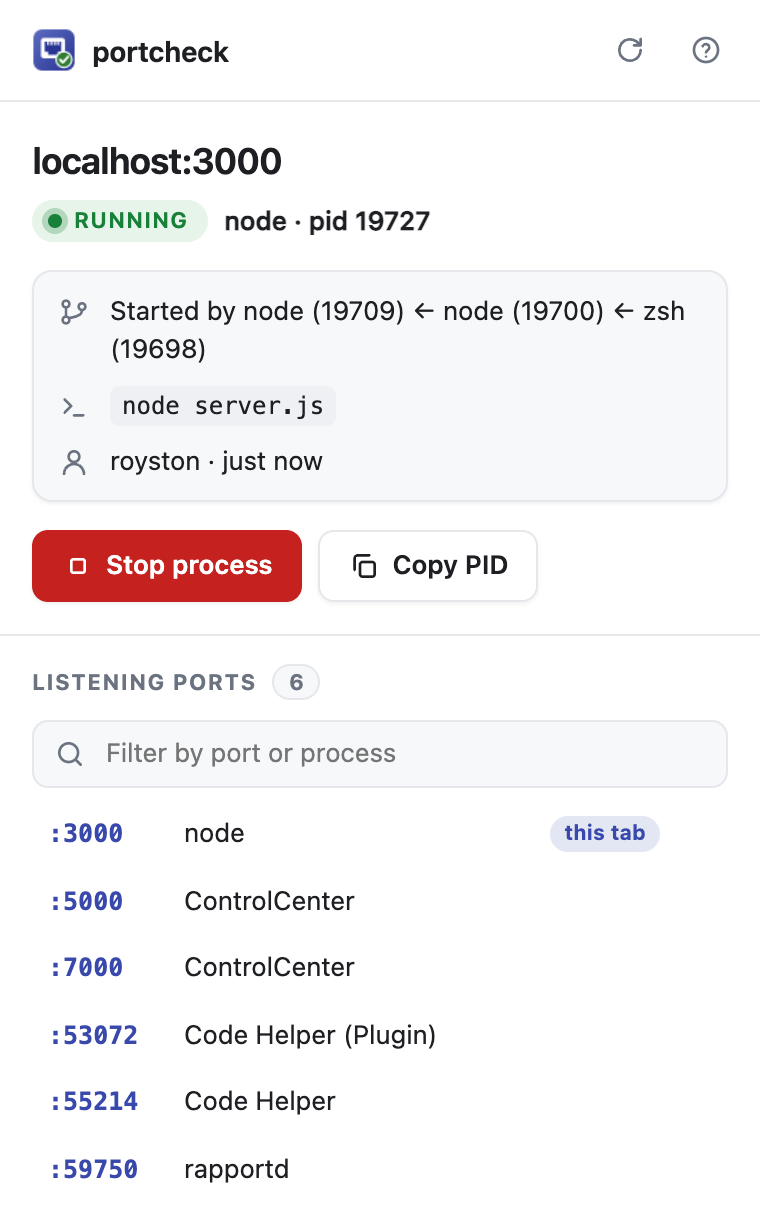
node(orjava,pyth,webfor a container…) shows what serves the page; hover for the process, its PID and who started it (npm ← zsh).offin red means nothing is listening: the server isn't running, so "This site can't be reached" isn't a network problem. - The popup shows whether the page's port is Running, Not running or Hidden, and a card with who started the process, its command, its user and how long it has been running; for a Docker/Podman/WSL port, the command that stops it. Stop process asks first, then stops it with portcheck's safety guards: it never stops system processes or the browser itself. Copy PID copies the process ID. Below, every port listening on the machine, filterable by port or process, one click to open; the current tab's port comes first. Light and dark themes follow your system.
It works on localhost, *.localhost, 127.0.0.1, [::1] and 0.0.0.0, on any port.
Install
- Download
portcheck-browser-<version>.zipfrom the latest release and unzip it into a folder you'll keep (the browser loads the extension from there). - Open
chrome://extensions(Edge:edge://extensions), turn on Developer mode, click Load unpacked and choose that folder.
Setup
The extension asks the portcheck program on your machine, through the browser's
native messaging.
Connect them once:
- Install portcheck (0.7 or later).
-
Run:
This registers portcheck with every supported browser installed for your user;
--browser edgepicks one. No administrator rights are needed. Check withportcheck browser status; undo withportcheck browser uninstall.
If the popup says Connect portcheck to this browser, step 2 hasn't been done for this browser (or portcheck moved: run it again).
Troubleshooting
- The popup says "Connect portcheck to this browser". Run
portcheck browser install(again, if portcheck moved or was installed differently), then reopen the popup. - macOS asks "portcheck would like to access files in your Desktop folder" (or
Documents, Downloads). The registered portcheck binary lives in that folder, for
example a build from source; the browser waits for your answer before the badge can
appear. Click Allow, or register a copy outside those folders
(
portcheck browser install --path /usr/local/bin/portcheck). Package-manager installs (Homebrew, Scoop) aren't affected. - No badge on a localhost tab. The badge only appears once the page has loaded;
reload it.
portcheck browser statusshows whether this browser is registered.
Privacy and permissions
- The extension can only read the address of localhost tabs; it can't see other sites, and it has no access to page content.
- It can ask portcheck for exactly four things: its version, the listening ports, whether one port is in use, and to stop one process. portcheck refuses anything else. Nothing leaves your machine.
Building from source
Requires Go 1.26+ and Node.js 22+.
git clone https://github.com/roystondwork-dev/portcheck.git && cd portcheck
make build                       # bin/portcheck (needs the browser commands)
bin/portcheck browser install --path "$PWD/bin/portcheck"
cd extensions/browser && npm ci && npm run build
Then in Chrome open chrome://extensions (Edge: edge://extensions), turn on
Developer mode, click Load unpacked and choose extensions/browser/dist.