VS Code extension
The portcheck extension shows what's using your ports and frees them safely, without leaving the editor. It works in VS Code and in editors that use Open VSX (VSCodium, Cursor, Windsurf).
Install
In VS Code, open Extensions and search portcheck, or install Portcheck - Port in Use Fixer from the VS Code Marketplace. In VSCodium, Cursor and Windsurf, it's on Open VSX. portcheck is built in.
Every portcheck release
has a portcheck-vscode-<version>.vsix with portcheck built in for macOS, Linux and
Windows (x64 and arm64); the extension uses the right one for the machine it runs on,
including remote machines, WSL and containers. Download it and install it:
or use Extensions → … → Install from VSIX….
The extension needs VS Code 1.98 or later. The .vsix has build provenance:
gh attestation verify <file> --repo roystondwork-dev/portcheck.
"Port in use" errors: one-click fixes
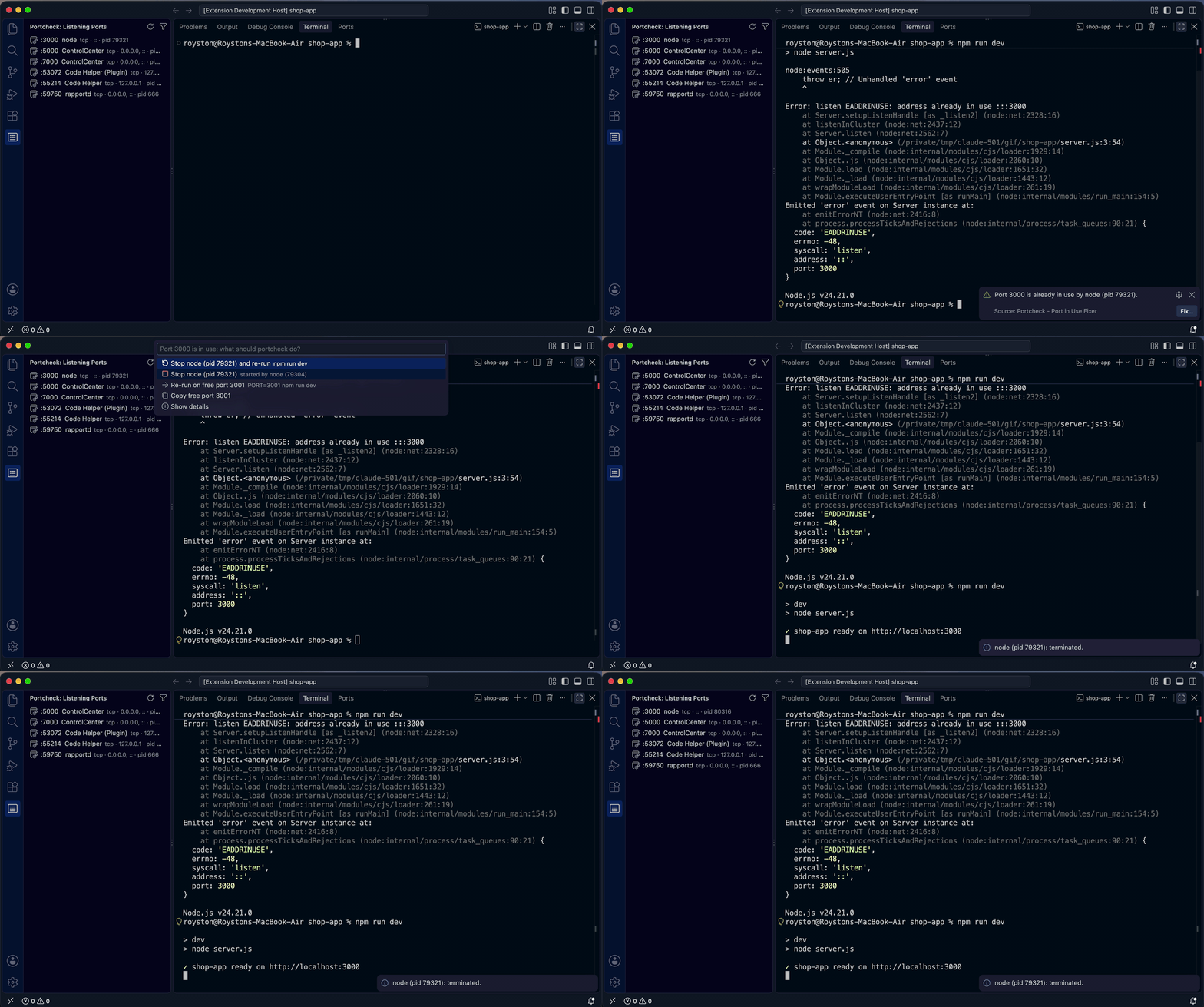
When a command in the integrated terminal fails because its port is taken, the extension tells you who holds it and offers to fix it:
$ python3 -m http.server 3000
OSError: [Errno 48] Address already in use

 ⚠ Port 3000 is already in use by Python (pid 41852).                    [Fix…]

  Port 3000 is in use: what should portcheck do?
  ↻ Stop Python (pid 41852) and re-run     python3 -m http.server 3000
  ■ Stop Python (pid 41852)                started by zsh (41848) ← Code (28865)
  → Re-run on free port 3001               python3 -m http.server 3001
  ⧉ Copy free port 3001
  ⓘ Show details
- Stop … and re-run stops the holder (portcheck's safety guards apply) and runs your command again in the same terminal.
- Re-run on free port runs your command on the next free port. The port is
replaced where the command names it (
--port 3000,:3000,runserver 8000), otherwise the tool's port flag is added (vite --port 3001,rails server -p 3001), otherwisePORT=3001is set, which most Node frameworks read. The command is shown before you choose it. - For a port held by a container or WSL distro, the fix is the right
docker stop/wslcommand, and for a hidden owner the elevatedportcheck kill; neither stops a proxy.
The error itself is also a link (Ctrl/Cmd+click) that opens the same menu, and portcheck: Fix a Busy Port… opens it for any port.
The extension recognises the messages of Node.js (EADDRINUSE), Vite, Next.js,
Create React App, Angular, Bun, Deno, Go, Rust, Python (uvicorn, Flask, Django,
http.server), Ruby (Puma, WEBrick), Spring Boot, .NET, PHP, nginx, Redis,
PostgreSQL and Docker. When a message doesn't name the port (Python's
[Errno 48] Address already in use, Django's That port is already in use), the
port comes from the command (runserver 8000) or the tool's default (Django 8000).
If yours isn't recognised, please
open an issue with the line.
Shell integration
Noticing errors as they're printed, and re-running commands, use VS Code's shell integration, which is on by default for bash, zsh, fish and PowerShell. Without it, errors are still links, and fixes that re-run a command are not offered. The extension needs VS Code 1.98 or later.
Project ports (.portcheck.yaml)
If the workspace has a .portcheck.yaml, the extension runs
portcheck doctor on it and keeps it up to date as you edit the file:
- The status bar shows
✓ ports, or⚠ 1/4 portswhen a check fails; hover for every check, click to fix one (stop what holds a port the project needs). - Problems shows each failed check on its entry in the file, and mistakes in the file (an unknown key, a bad port) on their line.
- In Listening ports, the project's ports come first, with a star and their name.
- With the YAML extension installed, the file gets completion and validation from the JSON Schema, bundled with the extension.
Listening ports view
The portcheck icon in the activity bar opens Listening ports: one row per listening port and owner.
| Row | Meaning |
|---|---|
:3000 node (process icon) |
a process you can stop |
:8080 docker:web (package icon) |
a port published by a Docker/Podman container, or forwarded from a WSL distro (wsl:Ubuntu/node) |
:22 (owner hidden) (lock icon) |
the owner belongs to another user and is hidden without elevated privileges |
:3000 node (star), web · tcp · … |
a port your project's .portcheck.yaml names |
UDP ports are hidden by default, since most are system services (mDNS, AirDrop); the filter button in the view's title bar shows them.
Hover a row for details: the process, who started it (npm (4200) ← zsh (900)),
the command line, the user, and for containers the image and the command that stops it.
The view refreshes every 5 seconds while it's visible (setting
portcheck.refreshInterval; 0 refreshes only on demand) and has a refresh button.
Stopping a process
Use the stop button on a row, or portcheck: Stop What's Using a Port… from the command palette.
- For a process, you're asked first, and the dialog shows who started it. Stop asks it to exit and forces it only if needed; Force Kill skips the graceful step. portcheck's safety guards apply: it refuses system processes and never stops VS Code itself.
- For a container or WSL port, the extension never stops the proxy, because that
would affect every container or the whole distro. It shows the right command
(
docker stop web,wsl -d Ubuntu --exec kill 1234) and can run it in a terminal or copy it. - For a hidden owner, it offers the elevated command (
sudo portcheck kill 22) to run in a terminal.
Commands
| Command | What it does |
|---|---|
| portcheck: Check a Port… | whether a port is free, and who holds it if not (with a Stop It action) |
| portcheck: Find a Free Port… | the first free port in a range (default 3000-9999); Copy or Insert it at the cursor |
| portcheck: Stop What's Using a Port… | as above, by port number |
| portcheck: Fix a Busy Port… | the fix menu above, for any port |
| portcheck: Check Project Ports (.portcheck.yaml) | re-runs doctor and offers fixes (also the status bar item) |
| portcheck: Show/Hide UDP Ports | toggles portcheck.showUdp |
| portcheck: Refresh | reloads the view |
| portcheck: Show Log | the extension's log, useful when reporting issues |
Remote development
The extension runs where your code runs. In Remote-SSH, WSL and Dev Containers it lists and stops ports on the remote machine, distro or container, not on your laptop.
Settings
| Setting | Default | Meaning |
|---|---|---|
portcheck.path |
(empty) | path to the portcheck binary; empty uses the bundled one, then portcheck on your PATH |
portcheck.refreshInterval |
5 |
seconds between refreshes while the view is visible; 0 = manual |
portcheck.showUdp |
false |
show UDP ports in the view |
portcheck.terminal.notify |
true |
notify when a terminal command fails because its port is in use (errors are links either way) |
How it works
The extension is a thin client: every action runs the portcheck CLI with --json
(versioned schema) and shows the result. Process attribution,
containers, WSL and the safety guards all come from the same code as the CLI. See
ADR-0004.
Building from source
Requires Go 1.26+ and Node.js 22+.
git clone https://github.com/roystondwork-dev/portcheck.git && cd portcheck
make build                         # builds bin/portcheck
cd extensions/vscode
npm ci
npx vsce package --no-dependencies # creates portcheck-<version>.vsix
code --install-extension portcheck-*.vsix
Then set portcheck.path to the absolute path of bin/portcheck (or put it on your
PATH).